

Our tool allows for a full configuration of the expiration date. Viafirma Documents allows you to define the expiration of a request at three configuration levels, applied in the following order of priority, from highest to lowest:
- Process level (API)
- Group level
- Application level
PROCESS LEVEL (API)
This is the highest-priority level. When creating the process, you can specify the expires attribute within the MessageSet object, expressed as an epoch timestamp in milliseconds.
If it is omitted, the system will look for the configuration at the next level.
For further information, please refer to this documentation link.
GROUP LEVEL
If the API process does not specify an explicit expiration date, the expiration configured for the group that owns the process will apply.
To configure it, go to:
Menu > My Group > Specific Settings
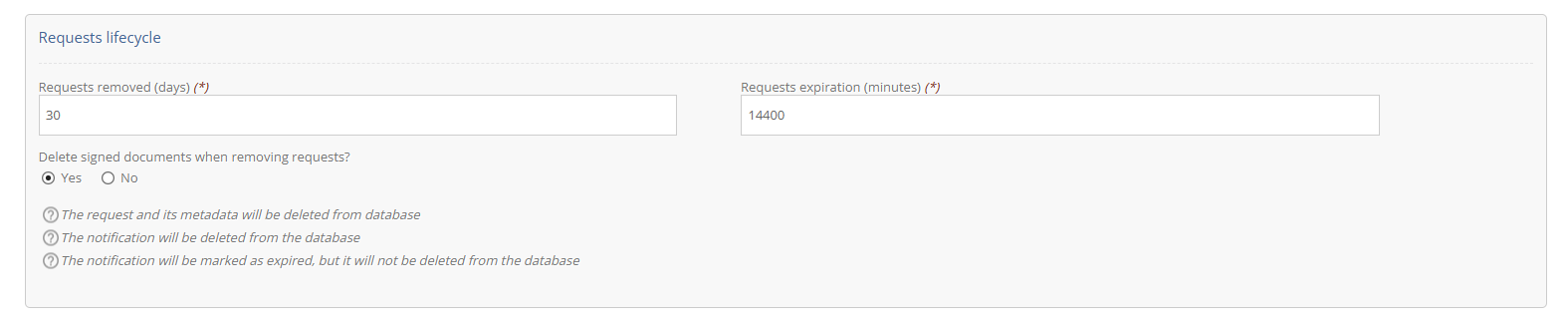
Then in that page go to the “Signature Process Lifecycle” section.
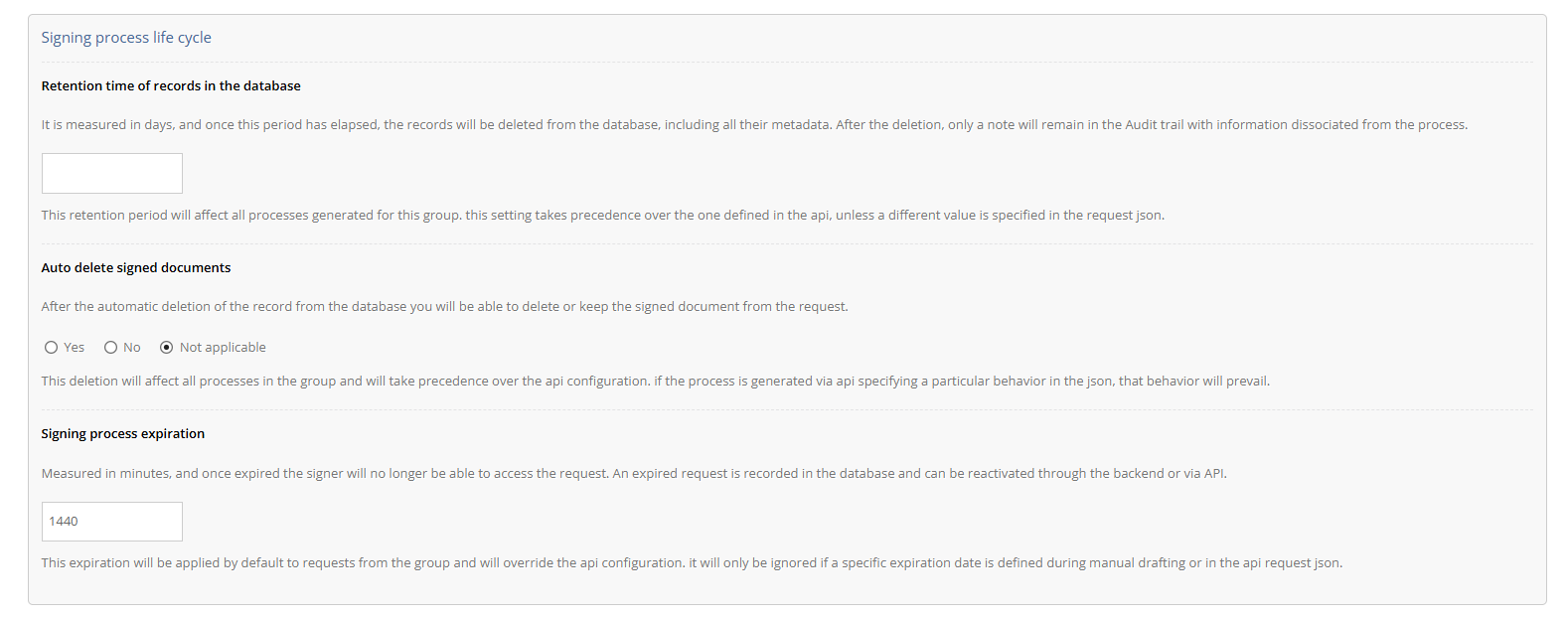
Permissions and Cloud environments:
Group-level lifecycle configuration is only visible to the platform’s global administrators.
For Cloud environments, if you need to modify this value, you must request the change by submitting a support ticket.
APPLICATION LEVEL
If neither the process nor the group defines an expiration date, the application’s configuration that owns this process will be applied.
It can be configured under:
Menu > Applications > Edit application > Request Lifecycle
Use the Request expiration (minutes) field.
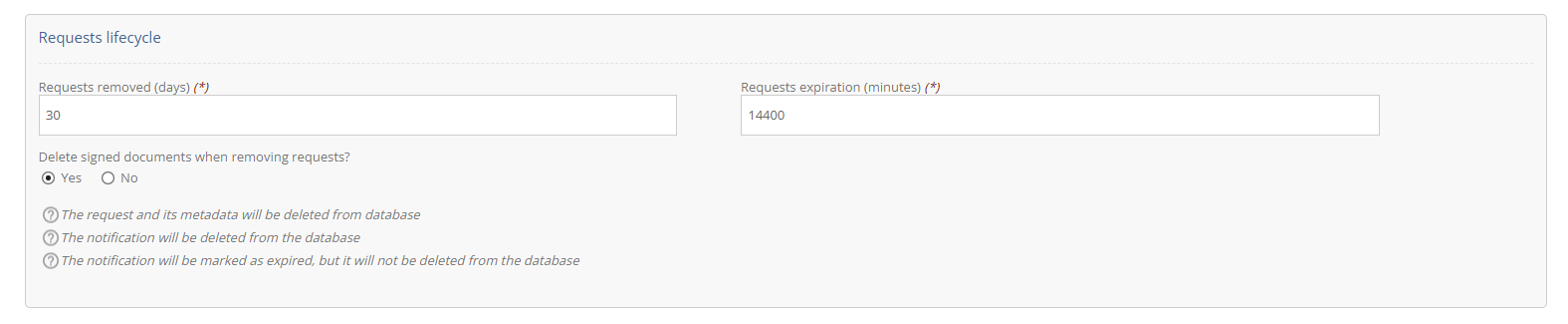
Permissions and Cloud environments:
Aplication-level lifecycle configuration is only visible to the platform’s global administrators.
For Cloud environments, if you need to modify this value, you must request the change by submitting a support ticket.
How can an expired request be reactivated?
If a process reaches its deadline and moves to the final EXPIRED status, the expiration can be reversed. There are several ways to reactivate it:
- API — Extend the deadline of an expired SET
This method applies to an entire SET, which may contain multiple documents and signers, and updates its expiration date to a new date in the future. This is the recommended option for reactivating complete workflows.
- Web panel — Manual reactivation by the owner
The user who owns the request can reactivate it manually through the web interface.
CRUCIAL!: Limited reactivation window
When a request expires, its documents, whether still in draft status or partially signed, enter a temporary retention period.
Reactivation through any of the available methods is only possible during this retention period.
Once this period has elapsed without reactivation, the documents will be permanently deleted in accordance with the system’s retention policy, and the process will no longer be recoverable.