

The currently available bulk actions are:
| Action | Description |
| ✅ Sign | Signs the selected documents. Available for certificate-based signatures and other signature types depending on settings. |
| ❌ Reject | Rejects the selected requests in bulk. |
| 📅 Extend deadline | Extends the deadline for the selected requests. |
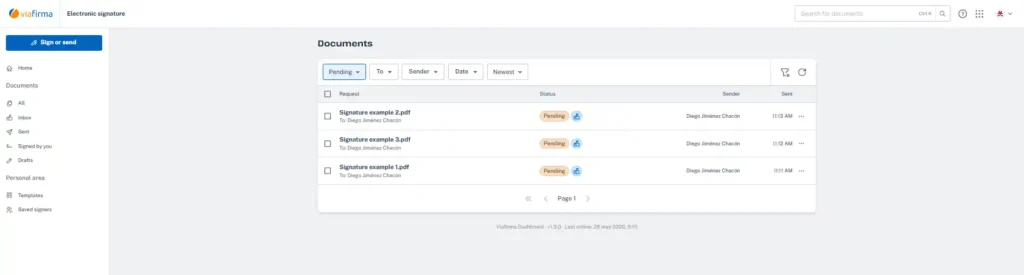
Step 1: Access your document inbox
Go to the Inbox section within the requests panel. Here you will find all requests awaiting your signature, marked with the “Pending” status :
Step 2: Select your Documents affected by the bulk action
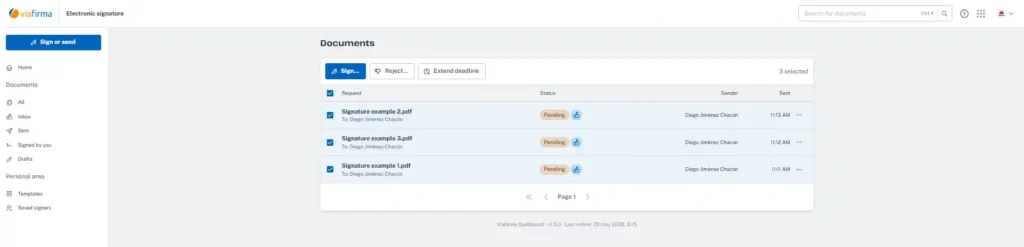
To start a bulk action:
- Tick the checkboxes located on the left side of each request you want to process.
- When more than one document is selected, a toolbar with bulk action options will appear at the top.
- Click the action you want to perform.
Step 3: Confirm the bulk action
SIGNING
The system will display a summary screen titled “Documents to Sign”.
- Review the list to ensure all documents are correct (each will display the Unsigned status).
- If everything is in order, click the central button: Sign All Documents.

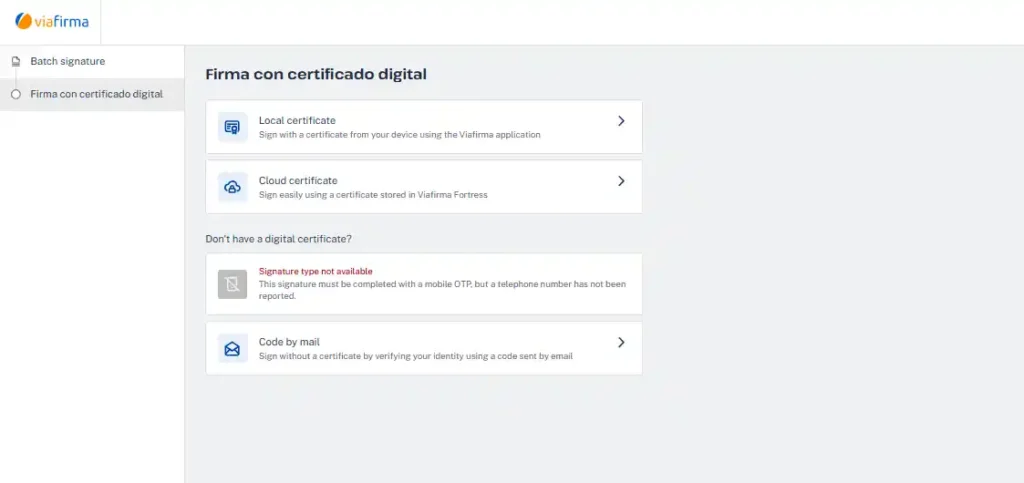
Step 4: Select the Signature Method
Finalmente, elige cómo deseas firmar. Las opciones disponibles dependerán de la configuración de los estilos y de si dispones de certificado digital.
Las opciones disponibles siempre que estén activadas son:
• Digital certificate signature:
◦ Local certificate: Use a certificate installed on your device (through our desktop application).
◦ Cloud certificate: Use a certificate centrally managed in Viafirma Fortress.
• Don’t have a digital certificate? (Alternativa options):
◦ Phone code: Receive a One-Time Password (OTP) via SMS.
◦ Email code: Receive the verification code by email.
REJECT SIGNATURE REQUESTS
When you click Reject, the system will display the “Reject Requests?” dialog with a summary of the affected documents.
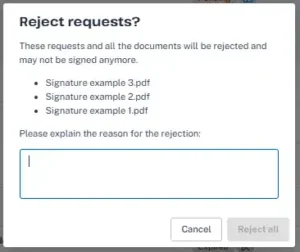
- The system indicates how many of the selected requests can be rejected (the rest will be ignored).
- Confirm by clicking Reject All
- Rejected requests can no longer be signed.Providing a rejection reason in the text field is mandatory.
EXTEND REQUEST DEADLINE
When you click Extend Deadline, the system will display the “Extend Deadline” dialog showing the requests whose deadline can be extended.
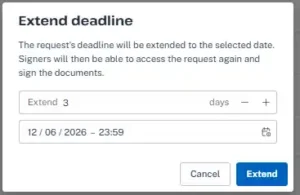
- Signers will be able to access the request again and sign the documents.
- Adjust the number of days using the − and + buttons (default: 3 days).
- The new deadline is automatically calculated and displayed.
- Confirm by clicking the blue Extend button.