

This is the final step in creating your signature request: the Summary. This screen will allow you to review all the settings and details before submitting the signature request.
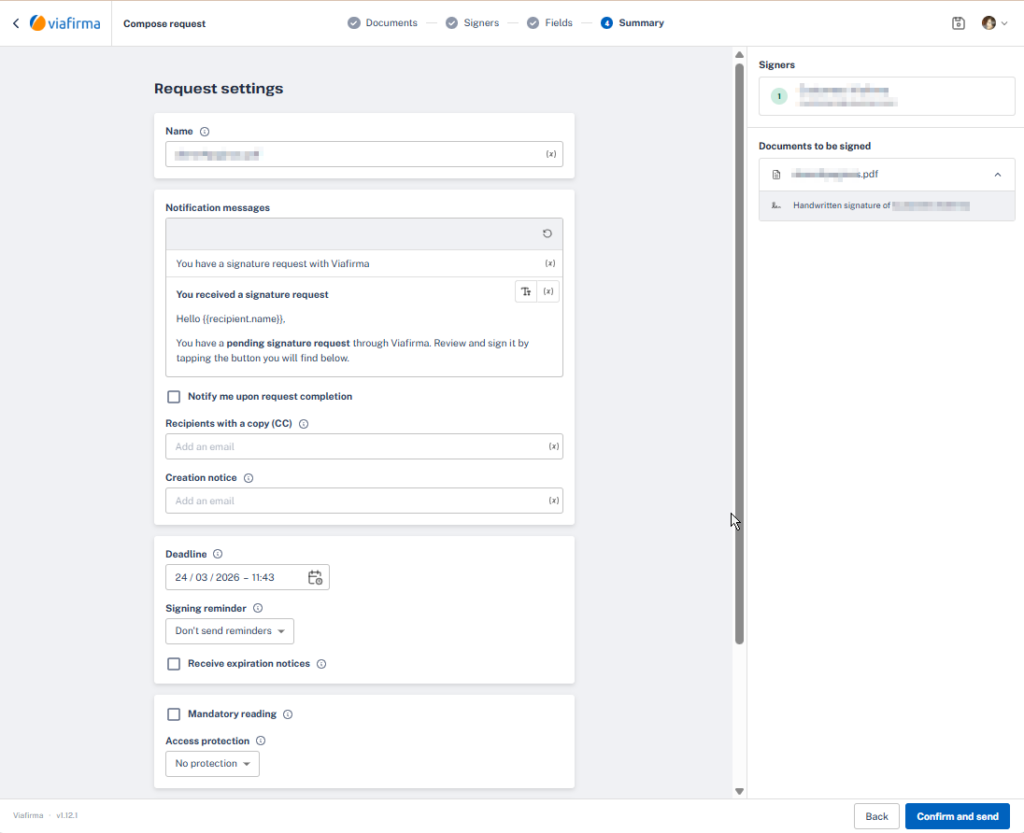
Below, we detail each of the options available in the “Request Configuration” section:
Main Configuration Options
- Name: This is the primary identifier for your request. This name (in the example, “Sample Proof”) will help you and the signatories identify the signature request.
- Notification messages: These notifications are the default unless preconfigured at the group or template level. You can use variables like {{recipient.name}} to customize it.
- Notify me when the request is complete: Check this box if you want to receive an automatic email notification once the last signatory has completed the process.
- Copy Recipients (CC): Add here the email addresses of anyone who needs to receive a signed copy of the final document but doesn’t need to sign it.
- Crear Alert: Allows you to set up emails that must be notified when the request is created. They will receive a notice with the basic information of it.
- Deadline: Set a day and time limit for signatories to complete the signature. After this date, the application may expire, preventing it from being completed. An expired vex may extend the deadline or create a new one based on this same request.
- Signature reminder: Set whether and how often you want the system to send automatic reminders to signatories who have not yet completed the process. You can select “Do not send reminders” if you prefer to manage it manually.
- Receive lapse notices: Notify the drafter of the request when it is about to expire and has not yet been signed.
- Read Only: If you select this option, the system will ensure that signatories must open and view the entire document before the signing button is enabled. That is, it will force the user to scroll to the end of the document before allowing them to sign.
- Access protection: Add an extra layer of security. Here you can configure whether the signatories will need a code (e.g. sent by SMS) or a password to access the document.
- Language of the signatory: Notifications are sent in the default language. Instead, the signatory will see the signature screen in the language that you have configured in your browser. With this option we can force the signatory to see the signature screen in a specific language.
Summary Side Panel
To the right of the screen, you will find a summary of the elements of the application:
- Signatories: A list of all participants who must sign the document, indicated in the order of signature if it is configured.
- Documents to sign: Confirm that the listed files (such as “Demo example”) are correct for this signing process.
Final actions
Once you have checked that all the configuration is correct:
- Back: If you need to correct or modify any of the data from the previous steps (documents, signatories or fields), press this button to go back.
- Sign now: Pressing this button will activate the request. If you are the first signatory on the list, the system will guide you to sign immediately. If you are not a signatory, the application will be sent to the first participant on the list to start the process.